
Insights from Pavel Yosifovich
How do you delete a file in Windows? looks like a beginner question, but it’s a great excuse to peel back the layers and see what Windows is really doing.
At the surface, you can just open File Explorer and delete a file. But if you’re studying Windows internals, the interesting part is what happens behind the scenes: which APIs are used, what flags matter, and how you can prove it with the right tooling.
How To Permanently Delete A Windows File From Explorer
In Explorer, there’s an important difference:
- Delete sends the file to the Recycle Bin (it’s not “actually deleted” in the sense most people mean).
- Shift+Delete deletes the file directly (skips the Recycle Bin).
So if your question is “how do I permanently delete a Windows file?” in the everyday Explorer sense (i.e., don’t send it to the Recycle Bin), Shift+Delete is the key.
Common Ways To Delete A File In Windows
There are plenty of tools you can use:
- Explorer
- The
delcommand in a Command Prompt - PowerShell
RemoveItem - A Windows API like
DeleteFile - Shell APIs like
SHFileOperation(more flexible — for example, deleting directories that contain files)
Different entry points… but internally, file deletion comes down to a small set of mechanisms.
The Two Ways Windows Actually Deletes A File
In reality, there are two ways to delete a file in Windows.
Delete A File By Opening It With Delete-On-Close
The first way is:
- Open the file with the “DeleteOnClose” flag (using
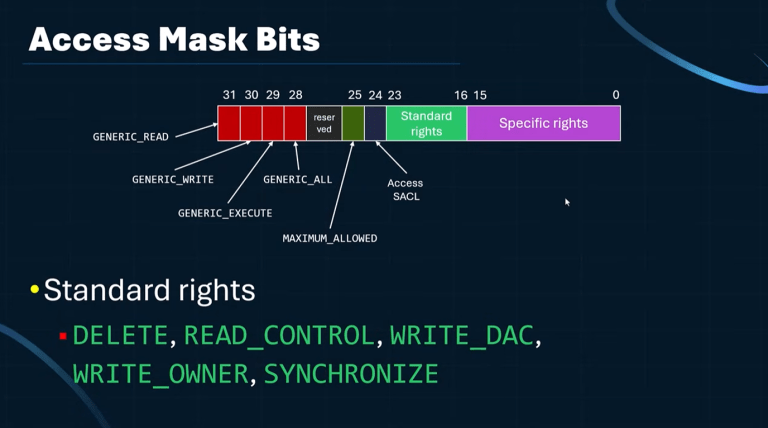
CreateFileor a native API likeNtOpenFile) - Make sure you opened it with DELETE access (otherwise it won’t work)
- Close the handle (
CloseHandle) - Once the file object is closed, the file is deleted
This is a clean model: open the file with the right flag, then close the handle, and the deletion happens.
Delete A File By Setting Disposition Information
The second way is used when the file is already open and you decide you want to delete it:
- Open the file normally
- Call something like
SetFileInformationByHandle - Use a disposition information class such as
FileDispositionInformation(or the extended version) - Set the boolean that says “delete this file”
- The file is deleted once all handles to it are closed
If you’ve done any kernel driver work, this aligns with IRP_MJ_SET_INFORMATION being sent down to the file system driver.
How To See What’s Really Happening With ProcMon
To figure out what a tool is doing (what del does, what DeleteFile does, what anything does), you need visibility.
That’s where Process Monitor (ProcMon) from Sysinternals comes in.
A simple workflow:
- Open ProcMon
- Stop the capture (so you can configure things without drowning in noise)
- Clear existing events
- Add a filter like: Path contains
test1.txt - Start capture
- Perform the deletion
- Stop capture and inspect the relevant events
One thing you’ll notice right away: even typing in Command Prompt can trigger file activity, because of auto-complete. You may see a CreateFile with read-style access before you even run the delete command. That’s normal background behaviour — it’s not the deletion yet.
What The Del Command Does Behind The Scenes
When you actually run del test1.txt, ProcMon makes it very clear what’s happening.
You’ll see a CreateFile where:
- Desired Access includes DELETE
- Options include File Delete On Close
That tells you del is using the first mechanism:
- Open the file with “DeleteOnClose”
- Then close the handle
- And the file is gone
It’s simple — and very effective.
What ‘DeleteFile’ Does Behind The Scenes
Next, I wrote a tiny program that just calls DeleteFile and passes in the filename (argv[1]). The deletion works, but the mechanism is different.
In ProcMon you’ll see:
- a
CreateFilewith DELETE access - no “DeleteOnClose” option
So it has to use the other mechanism — and you can see it directly:
- Set Disposition Information Ex
- File Disposition: Delete
If you open the call stack in ProcMon, you can literally follow it:
- The app calls
DeleteFile DeleteFilecallsNtSetInformationFile- That goes to the kernel and down through the file system stack (via Filter Manager, etc.)
On this version of Windows, DeleteFile is implemented using the disposition information approach.

Seeing IRP Major Function Codes With Advanced Output
If you enable Advanced Output in ProcMon, you can see the major function codes directly, which makes the mental model even cleaner:
- IRP_MJ_CREATE when the file object is created/opened
- IRP_MJ_CLOSE when the handle is closed
- IRP_MJ_SET_INFORMATION when disposition information is set (including the delete disposition)
Once you see those three in context, file deletion stops being mysterious.
Take This Further
Now that you’ve got the model, you can apply it to anything:
- Trace
RemoveItemin PowerShell - Trace
SHFileOperation - Trace whatever third-party tool you like
The point is: you don’t need to guess. You can verify exactly what’s happening.
Why This Matters For TrainSec Students
For TrainSec students, this example is important not because deleting a file is hard, but because it forces you to build a real mental model of Windows behaviour below the surface.
A lot of people learn Windows behaviour as a loose checklist of APIs. That approach hides the mechanics. In this deletion walkthrough, the mechanics are the whole lesson: there are two core deletion paths, access rights matter, and you can validate everything by watching the real operations (create, close, set-information) as they happen.
This is exactly the kind of thinking TrainSec is designed to train: stop treating Windows as a black box, and start reasoning about it based on what the system is actually doing.
Keep Learning With TrainSec
This content is part of the free TrainSec Knowledge Library, where students can deepen their understanding of Windows internals.
Subscribe for free and continue learning with us: https://trainsec.net/library/.